How to use D2L Brightspace with ChatGPT
ChatGPT can read your Brightspace courses through a free MCP server running on your own computer. ChatGPT connects to MCP servers over the internet, so this needs HTTP mode and a tunnel. It takes about five minutes.
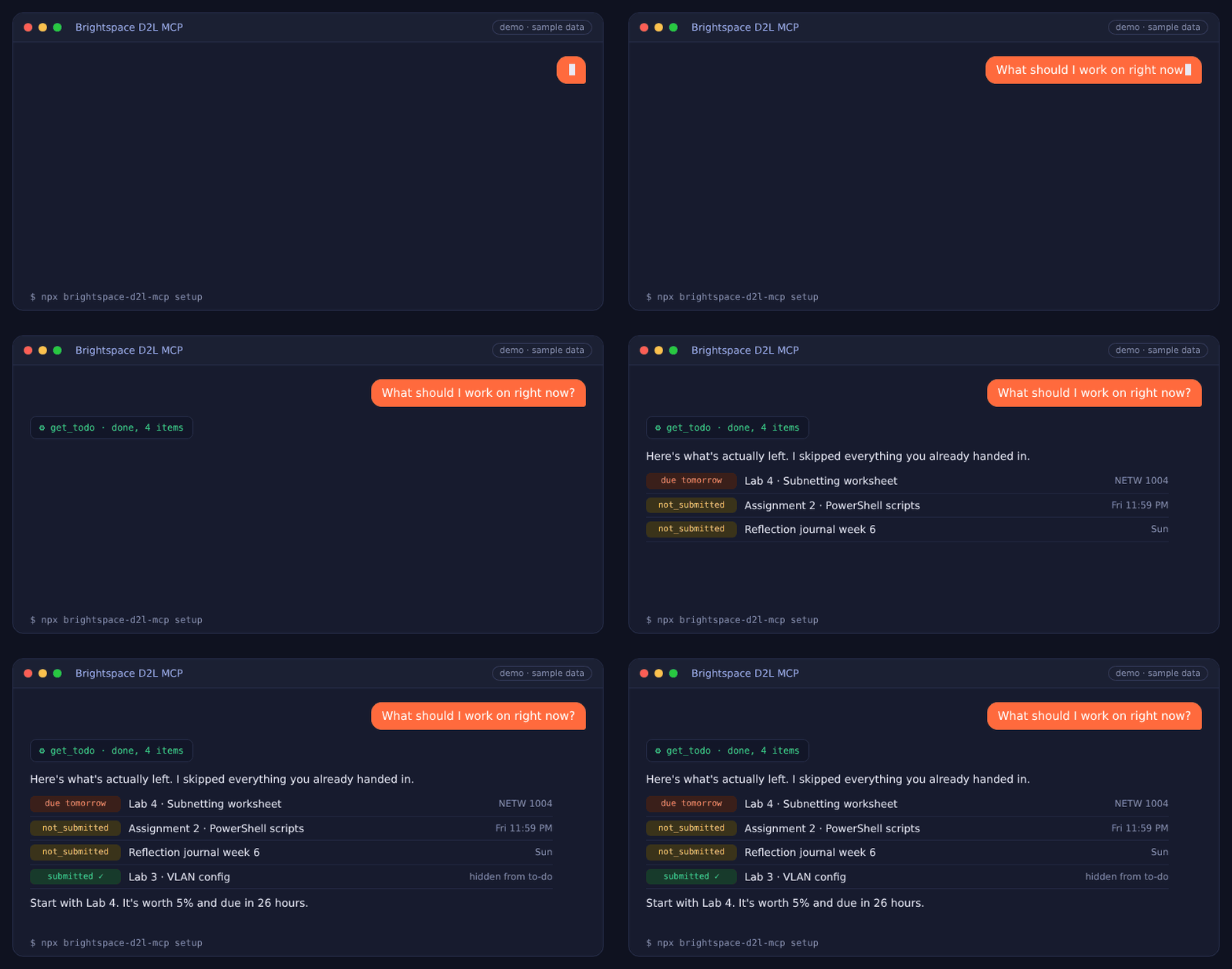
Steps
- Run setup. Run npx brightspace-d2l-mcp setup and sign in to your school's Brightspace.
- Start HTTP mode. Run npx brightspace-d2l-mcp serve --http. It prints a private URL with a token.
- Open a tunnel. Make the local URL reachable, for example with cloudflared tunnel --url http://127.0.0.1:8787.
- Add the connector. In ChatGPT open Settings, Apps and Connectors, Advanced, turn on Developer mode and create a connector with the tunnel URL and no authentication.
- Ask ChatGPT. Start a chat with the connector on and ask what is due this week.
npx brightspace-d2l-mcp setup
npx brightspace-d2l-mcp serve --http
cloudflared tunnel --url http://127.0.0.1:8787
Keep the URL private. Anyone with it can read your Brightspace while the server and tunnel run. Stop both with Ctrl+C when you're done.
Easier option
Claude Desktop, Cursor, VS Code with Copilot and about ten other apps connect automatically with no tunnel. See the Claude guide or the full app list.